31.3 Send model outputs back to Excel
This section shows you how to take model outputs and place them directly into Excel. To illustrate the points, we will again work with the Bilinks Example Model LegalTreeVars.trex and the Excel Workbook LegalTreeVars-BilinkWorksheet.xls. We will specifically focus on sending the payoff for the Litigate strategy to Excel.
Create Named Cells in Excel
Before an Excel cell (or range) can be connected to TreeAge Pro, it must first be named. This applies when sending data in either direction.
In the workbook, we want to connect our model output for the payoff for Litigate to cell G8 in the Excel worksheet.
-
Open the Excel workbook LegalTreeVars-BilinkWorksheet.xls.
-
Select cell G8 (the cell we want our TP output to go to).
-
Click in the Name box in the top-left corner (as highlighted in the figure) and type the name we are assigning to this cell as “litigate_EV” then press Enter.
-
Ensure the name is a single word, using underscores if required.
-
-
When you select the cell, the new cell name should appear in the Name Box in Excel.
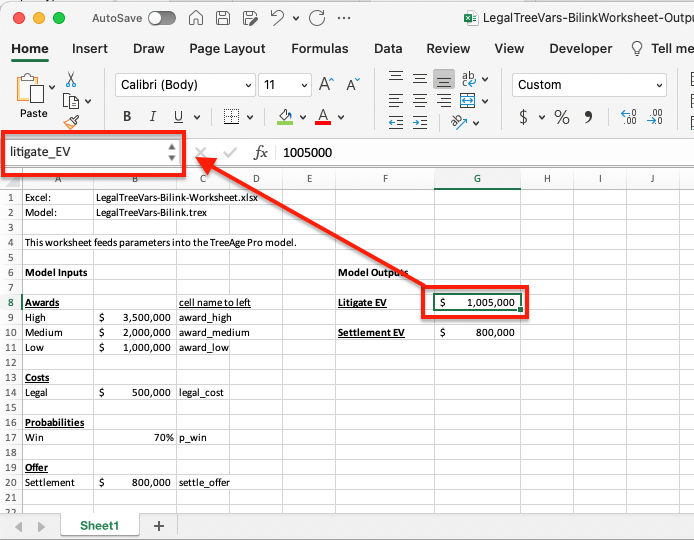
We will assume here that you have already connected the TP model to the Excel workbook. If you have not, please refer to the prior section.
Create the TreeAge Pro Bilink to send data from TreeAge Pro to Excel
-
Open Tree Preferences.
-
Navigate to the category Excel Workbook > Bilinks Connections.
-
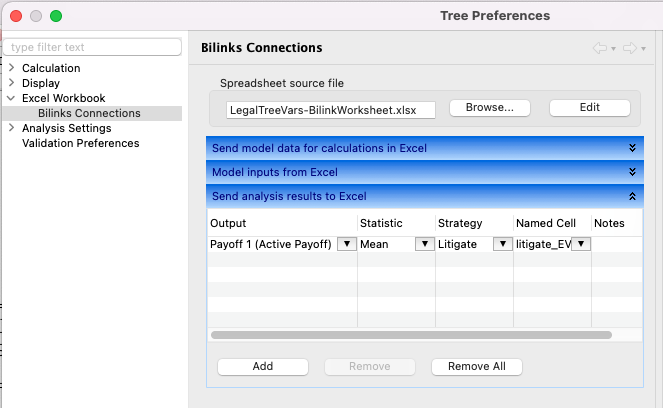
In the "Send Analysis Results to Excel” section (the bottom table), click the Add button. This adds a single row representing that specific model output. (See figure below).
-
To add the link for the EV of Litigate Strategy, adjust the values in the table as follows:
-
Output: Use the drop down menu to select: Payoff 1 (Active payoff).
-
Statistic: Select from the drop down menu the statistic you want to capture about the output (mean, standard deviation, etc). For this cohort model, it is the Mean value.
-
Strategy: Select Litigate as the Strategy. You might later connect the EV for a different strategy to a different Excel named cell.
-
Named Cell: Use the drop down menu to select the Named Cell litigate_EV in the Excel file.
-
Notes: Nothing required, but this is an optional editable text to describe this link.
-
-
Click Apply and Close.
The figure below shows the Tree Preferences with a single output from TreeAge added. The table for Send Analysis results to Excel shows the named cell the output is linked to: cost_output_SOC.
Repeat this process for as many TP model outputs as required. The example model LegalTreeVars-Bilinks-InputOutput.trex, has connections for two TP model outputs – one for each Strategy.
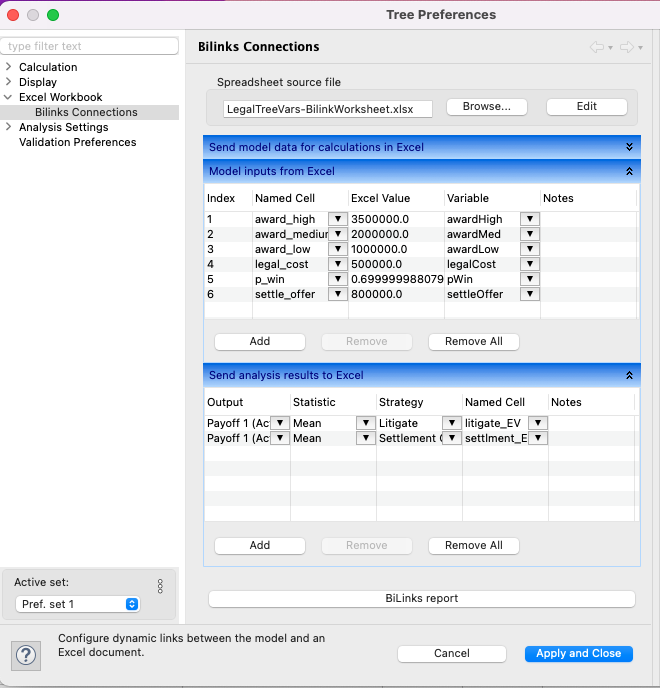
The links are now set up to send the TP model analysis outputs to Excel. When the TP model is analysed, the outputs are sent to Excel and they can be used to plot graphs etc. As the model inputs change, new analyses send different outputs to Excel.
If you remove the path to the worksheet, TreeAge Pro will look for the worksheet in the same folder as the model. Use the Edit button to remove the path.