25.1 Export the Budget Impact Data
We will use the Health Care tutorial example Budget Impact Markov.trex to export cost data for each Strategy for specific time periods.
In this model we will export 3 different payoff costs which could be required in a Budget Impact model. They are:
-
Total cost
-
Chemo/Meds cost
-
Hospital cost
All 3 payoffs will be exported, but we will only use the Total cost in the Example Budget Impact worksheet (next section).
Select BIA Export Data
Use the Budget Impact View to setup and execute the BIA export.
-
Open the Budget Impact View from the Views drop down menu.
-
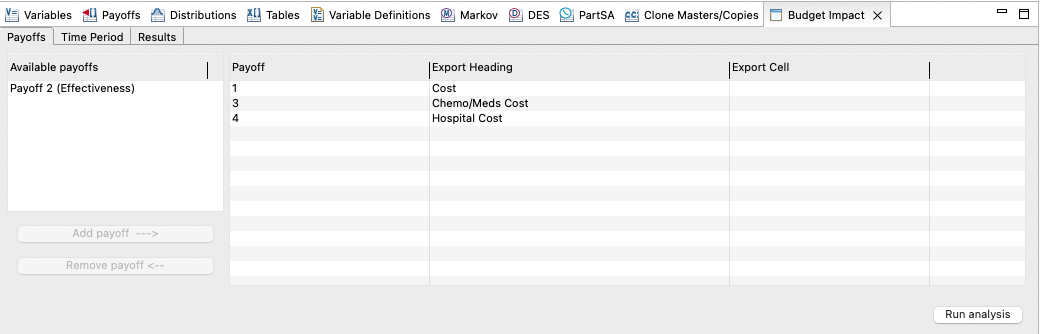
Select the Payoffs tab to choose the payoffs to export.
-
Select each of the following payoffs and then click “Add Payoff ---> “.
-
Payoff 1 (Cost)
-
Payoff 3 (Chemo/Meds Cost)
-
Payoff 4 (Hospital Cost)
-
-
If desired, change the Export Heading to change the Column Heading name used in the resulting Excel document. We will leave these with default values.
-
If desired, change the Export Cell to change the Excel data cell name referring to the payoff set in Excel. We will leave these blank to use default values. (This field allows you to give the excel data cells specific names).
-
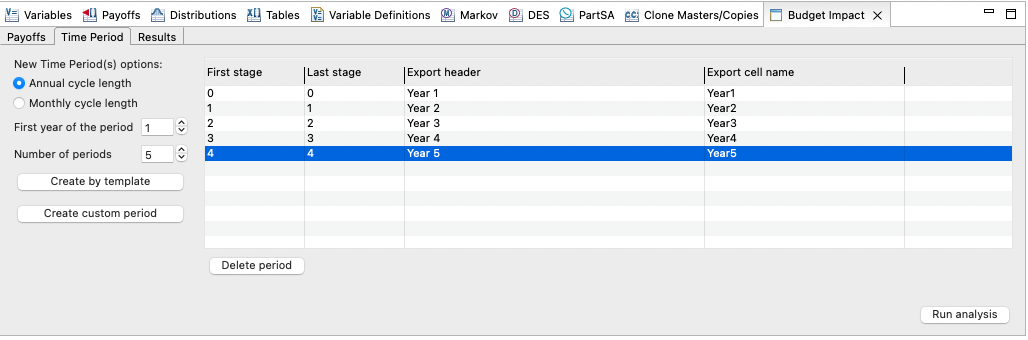
Select the Time Period tab to setup the appropriate time period(s) to export. We will export the costs for each of the first 5 years.
-
Choose Annual cycle length. This corresponds to the cycle length in the Markov model. (See below for example of how to handle different cycle lengths).
-
Enter 1 for the First year of the period. (This is the first year we want to report).
-
Enter 5 for the Number of periods. (This is the total number of periods we want to report, for example 5 for 5 years).
-
Click "Create by template".
-
Review the periods created. There should be 5 periods, one for each of the first 5 _stage values (0-4). (As in the figure below).
-
-
Click Run Analysis to generate the budget impact data.
-
Use the default options to run Cohort Analysis. If your model is a patient simulation model, run Microsimulation (with the appropriate options selected) instead.
-
The results from separate runs for each time period will be presented in the Results tab.
-
Click Export to Excel to send the data in the Results tab to a new Excel document.
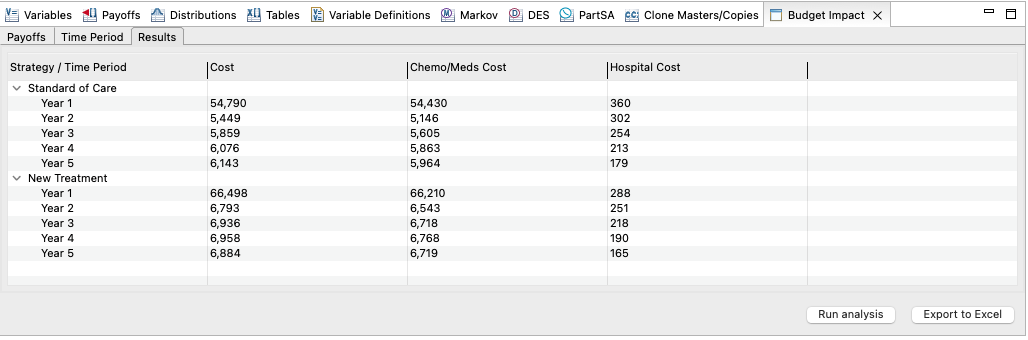
Once the results are exported to an Excel workbook, you can incorporate them in a BIA model as described in the next section.
You should note: The BIA results by year are based on a separate model run for each time period start and end point, which include the accumulation of the Final state rewards to account for half-cycle correction. These results will not match what you see in a Markov Cohort Analysis for an extended time horizon if you use traditional half-cycle correction.
Different cycle lengths for BIA (monthly instead of annual)
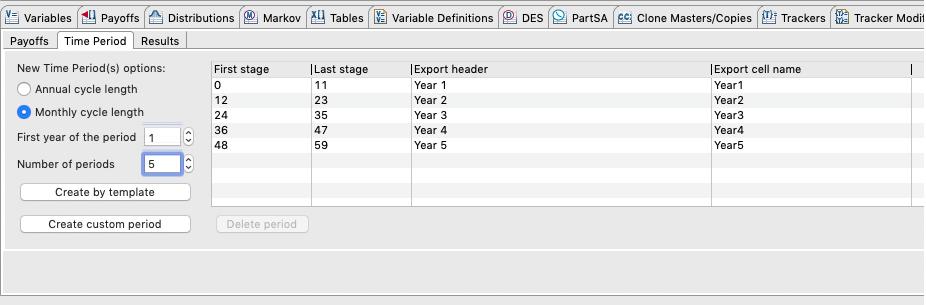
Your cycle length may not match the time period for Budget Impact output. For example, your cycle length could be monthly or weekly, but you may want annual BI time periods.
If the cycle length is monthly, you can use the radio button and create by template options. Refer to the figure below where the first year in BI output would be stages 0 - 11. If your cycle length were weekly, then you can create custom periods and you would need to enter the appropriate stages 0 - 51 for the first year.
Export Worksheet
In this section we will examine the Excel workbook with the exported data from Excel generated in the prior section from the Healthcare Example model Budget Impact Markov.trex.
The export process exported data for payoffs 1, 3 and 4 and for each of the first 5 years. The figure below shows the worksheet for the first strategy. An additional worksheet was also created for the second strategy.
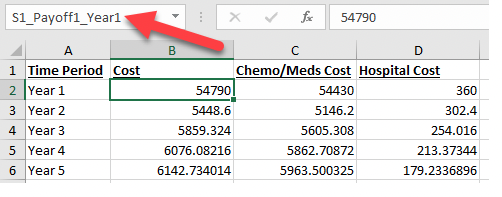
The table of exported data includes a row for each time period and a column for each payoff set. Each data cell is named with a reference to the strategy, payoff set and time period for easy reference in Budget Impact calculations. For example, cell B2 is named S1_Payoff1_Year1. (You can choose to overwrite the Payoff1 in the name using the Export Cell field found when exporting using the Budget Impact View). Each column can also be referenced as a range (e.g., S1_Payoff1_Range) that includes all time periods.
The workbook includes a sheet for each strategy, and after the sheets for all strategies an additional "variables" sheet provides the root node variable definitions at the time of the BIA export.