17.3 Editing a tree with cut, copy, paste and other tools
Frequently, sections of a tree can be reused in another part of the same tree, or a different tree that you are working on. TreeAge Pro allows you to select a node, a set of nodes, or an entire subtree, copy or cut it, and then paste it to one or more nodes in any open tree.
In addition to being able to duplicate and move subtrees in the Tree Diagram Editor, it is also possible to manipulate subtrees using the mouse and CONTROL key in the Tree Explorer View. The next section looks at subtrees in more detail.
To copy a node:
-
Select a node.
-
Select Edit > Copy from the menu.
-
... OR ...
-
Click CONTROL + C on the keyboard.
-
... OR ...
-
Right-click on the node and select Copy from the context menu.
Once copied to the clipboard, the node can be pasted to any node as a new branch. It can be pasted to any non-terminal node (branches not allowed) in the same tree or a different one. All aspects of the node (i.e., probability, payoff, variable definitions, etc.) are included with the copy.
To paste a copied node:
-
Select any single node that is not a terminal node.
-
Select Edit > Paste from the menu.
-
... OR ...
-
Click CONTROL + V on the keyboard.
-
... OR ...
-
Right-click on the destination node and select Paste from the context menu.
After being pasted, the copied node remains in the clipboard, and can be pasted at additional locations. It will remain in the clipboard until something else replaces it in the clipboard — including from an application other than TreeAge Pro.
It is also possible to cut a node — i.e., remove it from its current location, in order to paste it in a new location.
To cut a node:
-
Select a node.
-
Select Edit > Cut from the menu.
-
... OR ...
-
Click CONTROL + X on the keyboard.
-
... OR ...
-
Right-click on the node and select Cut from the context menu.
Special care must be taken when cutting and/or pasting anything other than a single endnode (i.e., any node without branches, except the root node). These actions can sometimes cause unexpected shifts in the model structure. You can always use the Undo command (CONTROL + Z) to undo the last changes to the model.
Multiple clipboards:
TreeAge Pro has four tree clipboards, where one is active at any one time. This means, in effect, that you can cut or copy subtree X without losing subtree Y that is currently on the active tree clipboard.
Prior to cutting or copying another subtree, simply activate one of the empty tree clipboard’s by selecting it in the Edit menu.
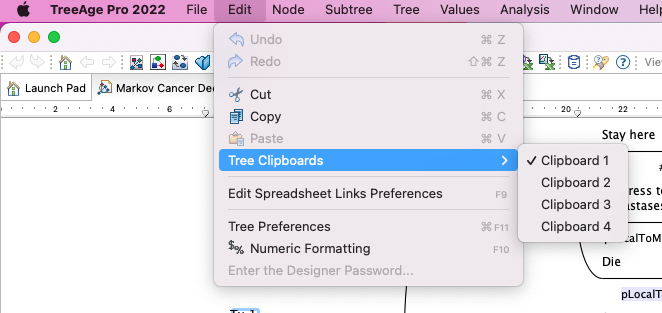
To select a different clipboard:
-
Choose Edit > Tree Clipboard > Clipboard # from the menu.
Undo and Redo:
Each tree (and dependency diagram) retains in memory details of the last actions that you took. Beginning with the most recent action and working back one action at a time will allow you to remove most changes to structure, values, preferences, etc.
To undo a change to your model:
-
Choose Edit > Undo.
-
... OR ...
-
Click CONTROL + Z on the keyboard.
If you go back too far in undoing modifications to the model, you can use the Redo command, also found in the Edit menu. The Redo command essentially allows you to undo previous Undo action(s).
To redo an undone change to your model:
-
Choose Edit > Undo [action].
-
... OR ...
-
Click CONTROL + SHIFT + Z on the keyboard.