46.5 Calibration Targets
Use the Calibration Targets Tab to select target data that we want our model to match. Our example model MarkovCalibration_1a_Fixed_PreCal.trex contains calibration targets as shown below based on the setup algorithm Survival Table Cohort. Further in this section are instructions for adding targets (such as payoffs) for the other algorithms.
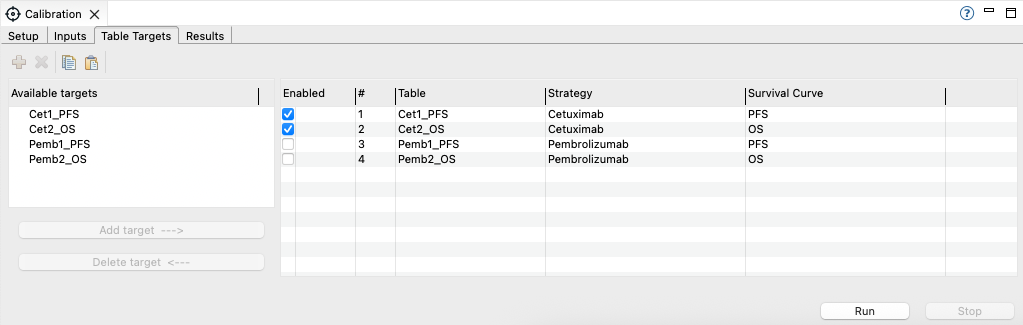
The Targets Tab contains the following elements:
-
Available targets: This lists all model tables (in the Survival Table Cohort calibration). Choose the Kaplan-Meier survival table you want to use and click the "Add target" button. Use the "Delete target" button to remove a selected output.
-
Selected target list: This lists the tables which have been selected to match to target data during the calibration. After selecting each, you will need to add details to associated the table with the proper model output (Strategy and Survival Curve, see below).
- Enabled:Check the box to include the input in the calibration. Uncheck to exclude it.
Note in the example model, only the targets related to the Cet strategy are enabled. We will calibrate the Pemb strategy separately.
-
Tool bar which consists of:
-
Add: Green "+" will add the table highlighted in the list of Available Targets listed in the table (same as the Add Target button below the table).
-
Delete: Red "X" will remove the table highlighted from the table (same as Delete Target button below the table).
-
Copy: Use this to copy the Target name and information from the 3 columns. You can then paste the targets into another model (using the paste button) or into another document, such as Excel.
-
Paste: Use this to paste Target names and values for the 3 additional columns into the Targets Table. Be careful to include all rows/columns when copying data back to TreeAge Pro.
-
For each selected table, you must associate it with a Markov process (Strategy) and a Survival Curve.
-
Strategy: In the Strategy column, use the drop down menu for each table to select the Markov node by name for matching to the survival table.
-
Survival Curve: In the Survival Curve column, use the drop down menu to select the survival curve (typically PFS or OS) for matching to the survival table.
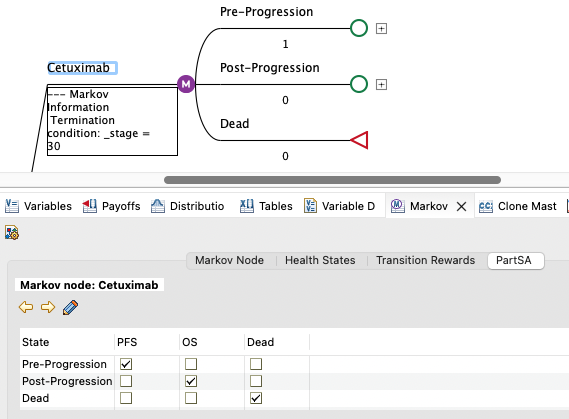
As a reminder, the Markov models themselves are already setup to include one or more states with each survival curve as shown below, via the Markov View.
46.5.1 Add Targets for Payoff-Based Calibration
For the setup algorithm types Cohort and Microsimulation, both these analysis types associate model outputs (payoffs, trackers) with target values. For these analysis types, you must setup payoff outputs which can be matched against target data.
The example model MarkovCalibration_3a_Payoffs_PreCal.trex payoff sets 6 and 7 are used to report 5-year progression-free survival and 5-year overall survival, respectively. Refer to the Setting up Payoffs for Calibration Targets section for instructions on how to setup payoffs like these.
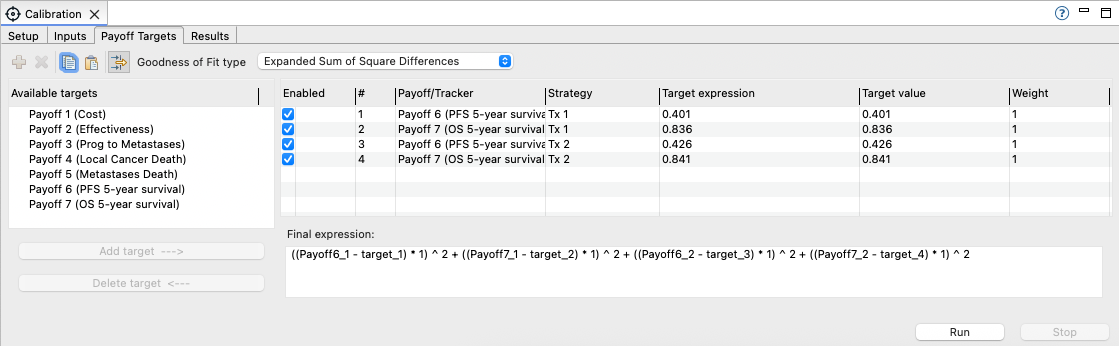
Set the Goodness of fit type:
-
Choose a goodness of fit type from the list.
-
Simple Sum of Square Differences - equally weight the error between the model output and the target value. This is the most common option.
-
Expanded Sum of Square Differences - allows you to weight some target differences more than others.
-
Custom Expression - build your own error function.
-
To add targets to the Calibration process:
-
Select a model output from the Available targets list on the left. Click the "Add target" button to add it to the selected targets list on the right. Once selected, you must then enter additional information for each target.
-
Strategy: Select the strategy for this target because the model output values are calculated for each strategy. In our model we need to have Payoff 6 for both Tx1 and Tx2, so we will choose that option twice with different matching target values.
-
Target expression: Set the target value/formula for the model output and strategy selected. The calibration process will then attempt to match the output to that target by changing input values. In the example model, Payoff 6 for Tx1 has a target value of 0.401.
-
While you may enter numbers here, you can enter any formula/expression including variables, tables, etc.
-
-
Target value: Shows the calculated value of the target expression (based on your inputs above).
-
Weight: Weighting is specifically used for the "Expanded Sum of Square Differences" fit type. Higher weights will put more emphasis on matching that target over other targets.
-
-
Final expression: This is automatically populated based on your selection of Goodness of Fit type and Targets.
If you enter invalid data (repeat targets, missing target values) errors will be reported below the inputs list (in red text).
In the example model, all the targets have been set and the model is ready to Run to match 5-year PFS and OS for each strategy to our observed target values.